
How to Set Up Your Email
This guide will help you set up your email address on common devices and email apps such as Outlook, Apple Mail, Thunderbird, and mobile phones.
If you get stuck, we’re always happy to help.
📧 Your Email Details (You’ll Need These)
Use the following settings when adding your email account.
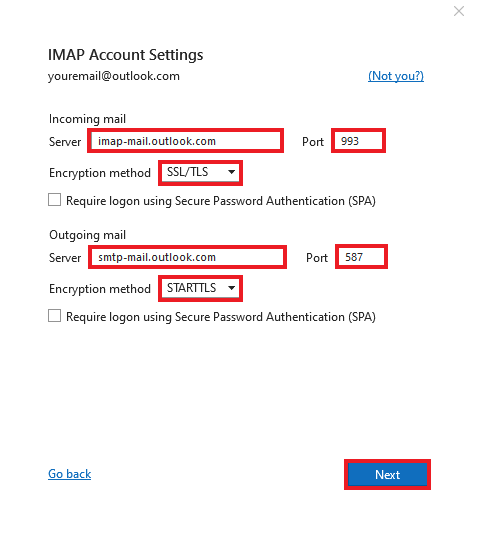
Incoming Mail (IMAP – Recommended)
- Server:
mail.communityhost.au - Port:
993 - Security: SSL / TLS
- Username: your full email address
(e.g. you@yourdomain.com.au) - Password: your email password
Outgoing Mail (SMTP)
- Server:
mail.communityhost.au - Port:
587 - Security: STARTTLS
- Authentication: Yes
- Username: your full email address
- Password: your email password
📱 Mobile Devices (iPhone & Android)
When adding a Mail Account on your phone:
- Choose IMAP
- Enter your name, email address, and password
- Use the same server details above for both incoming and outgoing mail
- Make sure authentication is enabled for outgoing mail
💻 Popular Email Apps
These settings work with:
- Microsoft Outlook
- Apple Mail (macOS)
- Mozilla Thunderbird
- Windows Mail
- Most Linux email clients
If your app asks for encryption type, choose:
- SSL/TLS for IMAP
- STARTTLS for SMTP
🔐 Security Notes
- Always use your full email address as the username
- Do not share your email password
- Use a strong password
- Your email is protected by SPF, DKIM, and DMARC to help prevent spam and spoofing
❓ Troubleshooting
If your email isn’t sending or receiving:
- Double-check the server name is spelled correctly
- Confirm ports and encryption match the settings above
- Ensure outgoing authentication is enabled
- Try restarting the email app
If problems persist, contact us and we’ll help you get connected.
✅ Need Help?
If you’d like help setting up your email, just get in touch and we’ll walk you through it.
Secure, reliable email — locally hosted and supported.